How to Upload a Clear, Accepted Document
A clear document gets approved fast. A blurry, dark, or cropped one gets rejected and slows your application. This article shows you how to take a great photo or scan every time.
Take the photo- Find a bright spot — natural daylight from a window is best. Avoid harsh direct sun.
- Place the document flat on a dark surface (a table or a book). The dark background helps the camera see the edges.
- Hold your phone directly above the document, not at an angle.
- Make sure all four corners are inside the frame.
- Tap the screen to focus, then tap the camera button to take the photo.
- Check the photo. If it is blurry or part is cut off, take it again.
Tip: Use the back camera, not the selfie camera. The back camera takes sharper photos.
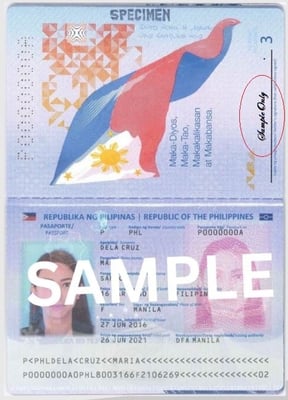
- All four corners are visible.
- No glare or shadows over the text.
- The text is clear enough to read with your own eyes when zoomed in.
- The colour looks natural — not yellow or blue.
- The page is straight (not tilted).
- Blurry — the text is hard to read.
- Dark — you cannot see the corners.
- Glare from a flash or window — bright spots cover part of the text.
- Cropped — the date, signature, or name is cut off.
- Wrong document — for example, the back of your passport instead of the photo page.
- The portal accepts JPG, PNG, PDF, and HEIC files.
- Files up to 10 MB are usually fine.
- If your file is too big, take a smaller photo (your phone has a setting for image size).
Free scanner apps (like Adobe Scan, CamScanner, or Google Drive scan) help you take a flat, clean picture of an old or wrinkled document. They auto-crop and brighten the image.
Always upload the right pageSome documents have multiple pages:
- Passport — upload the page with your photo and personal details.
- NBI Clearance — upload the front of the certificate showing your name and the issue date.
- Birth Certificate — upload the page that has your name, date of birth, and parents' names.
- PRC License — upload the front of the licence card.
If the employer needs more than one page, the document card will tell you.
What if it gets rejected?Read the reviewer's note carefully. It tells you exactly what to fix. See Why my document was rejected.
Related help